Posts

Function Module to get DDIC details

TFW_GET_DDIC_INFO *" IMPORTING *" REFERENCE(IV_TABNAME) TYPE TABNAME *" REFERENCE(IV_RESOLVE_SUBSTRUCTURES) TYPE TFW_BOOLEAN DEFAULT *" ' ' *" REFERENCE(IV_LANGUAGE) TYPE SPRAS DEFAULT SY-LANGU *" EXPORTING *" REFERENCE(ET_DFIES) TYPE TFW_DFIES_TAB *" EXCEPTIONS *" WRONG_CALL *" ERRONEOUS_INPUT_DATA *" DDIC_DATA_READ_FAILED *" ERROR_OCCURRED
Few Tips for Transport Request Manipulation

Image
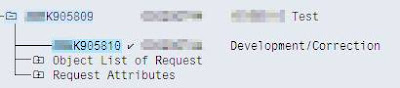
DON’T USE THESE UNLESS ABSOLUTELY NEEDED. The purpose of transport request is to organize and move development objects from one server (say development) to other server. But sometime due to conflict in timing of different releases, we may need to move objects from one transport to other transport to release lock / dependency / to avoid transport failure due to missing object. It’s not very easy task always, especially if the Transports are complex and contain multiple components. Things get more difficult if objects are locked in one transport or the transport is partially released (few tasks are released and locked object is inside that task). These off hand tips will help developer to manipulate transport request if complex situation arises. These methods are not very advisable as this may lead to transport inconsistency if not done properly or with proper understanding of the consequences. How to toggle the status of a Transport request? Here is a transport request where o...

Sample OOPS ALV with Docking Container

*&---------------------------------------------------------------------* *& Report ZACHI_TEST_ALV_DOCK *& *&---------------------------------------------------------------------* *& *& *&---------------------------------------------------------------------* REPORT  zachi_test_alv_dock. CONSTANTS : n  TYPE   i   VALUE   '10' . CLASS  lcl_event_rcvr  DEFINITION  DEFERRED. DATA : go_cont  TYPE   REF   TO  cl_gui_docking_container, go_alv  TYPE   REF   TO  cl_gui_alv_grid, go_event  TYPE   REF   TO  lcl_event_rcvr, go_toolbar  TYPE   REF   TO  cl_alv_event_toolbar_set. TYPES :  BEGIN   OF  ty_data , object_id  LIKE  crmd_orderadm_h-object_id, process_type  LIKE  crmd_orderadm_h-process_type, posting_date  LIKE  crmd_orderadm_h-posting_date, style ...

POPUP_GET_VALUES_USER_HELP

Image
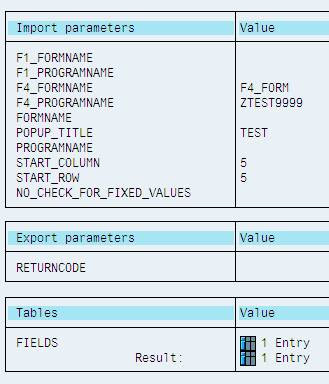
POPUP_GET_VALUES_USER_HELP FORM F4_Form USING TABNAME FIELDNAME DISPLAY           CHANGING RETURNCODE VALUE . * display F4 help for field TABNAME-FIELDNAME * if DISPLAY is ’X’, values cannot be selected, they are display-only, * e.g. for F4 help for fields which are no ready for input. * RETURNCODE field specifies whether the user cancelled the action * (’A’) or selected a field (SPACE). * VALUE field contains the selected value. Data : lt_return_values LIKE ddshretval OCCURS 0 WITH HEADER LINE . CALL FUNCTION ’F4IF_FIELD_VALUE_REQUEST’ EXPORTING tabname = space fieldname = space searchhelp = ’VKNK’ * dynprofield = ’X’ TABLES return_tab = lt_return_values. READ TABLE lt_return_values WITH KEY fieldname = FIELDNAME. VALUE = lt_return_values-fieldval. ENDFORM . Return Values

How to Read data from Excel File

DATA : i_data2 TYPE STANDARD TABLE OF alsmex_tabline, wg_data2 TYPE alsmex_tabline. DATA : l_b_col TYPE integer VALUE 1 , "Begining Column Position l_e_col TYPE integer VALUE 12 , "Ending Column position l_b_row TYPE integer VALUE 1 , "Begining Row position l_e_row TYPE integer VALUE 60000 . "Ending Row position CALL FUNCTION ’ALSM_EXCEL_TO_INTERNAL_TABLE’ EXPORTING filename = p_p_path i_begin_col = l_b_col i_begin_row = l_b_row i_end_col = l_e_col i_end_row = l_e_row TABLES intern = i_data2 EXCEPTIONS inconsistent_parameters = 1 upload_ole = 2 OTHERS = 3 . IF sy-subrc EQ 0 . LOOP AT i_data2 INTO wg_data2. CASE wg_data2-col . WHEN 1 . wg_data1-pernr = wg_data2- value . WHEN 2 . wg_data1-zname = wg_data2- value . WHEN 3 . wg_data1-emptyp = wg_data2- value . ENDCASE . AT END OF row. APPEND wg_data1 TO i_data1. CLEAR : wg_data1. ENDAT . ENDLOOP . ELSE . * Error Message ENDIF .

How to Change SAP Standard Data Element Text

Image
How to Change SAP Standard Data Element Text Go to Transaction -> CMOD Method 1: Method 2: Add this code Format is as follows DEFINE &BELEG& = ’a <GL: Old Name > New Name </>’ Old Name should be in small letters. Spaces should be replaced by _ (underscore) To get the list of all such modifications

MS Word Editor for Foms

MS Word editor option can be activated using the transaction I18N